AI Voice Control Overview
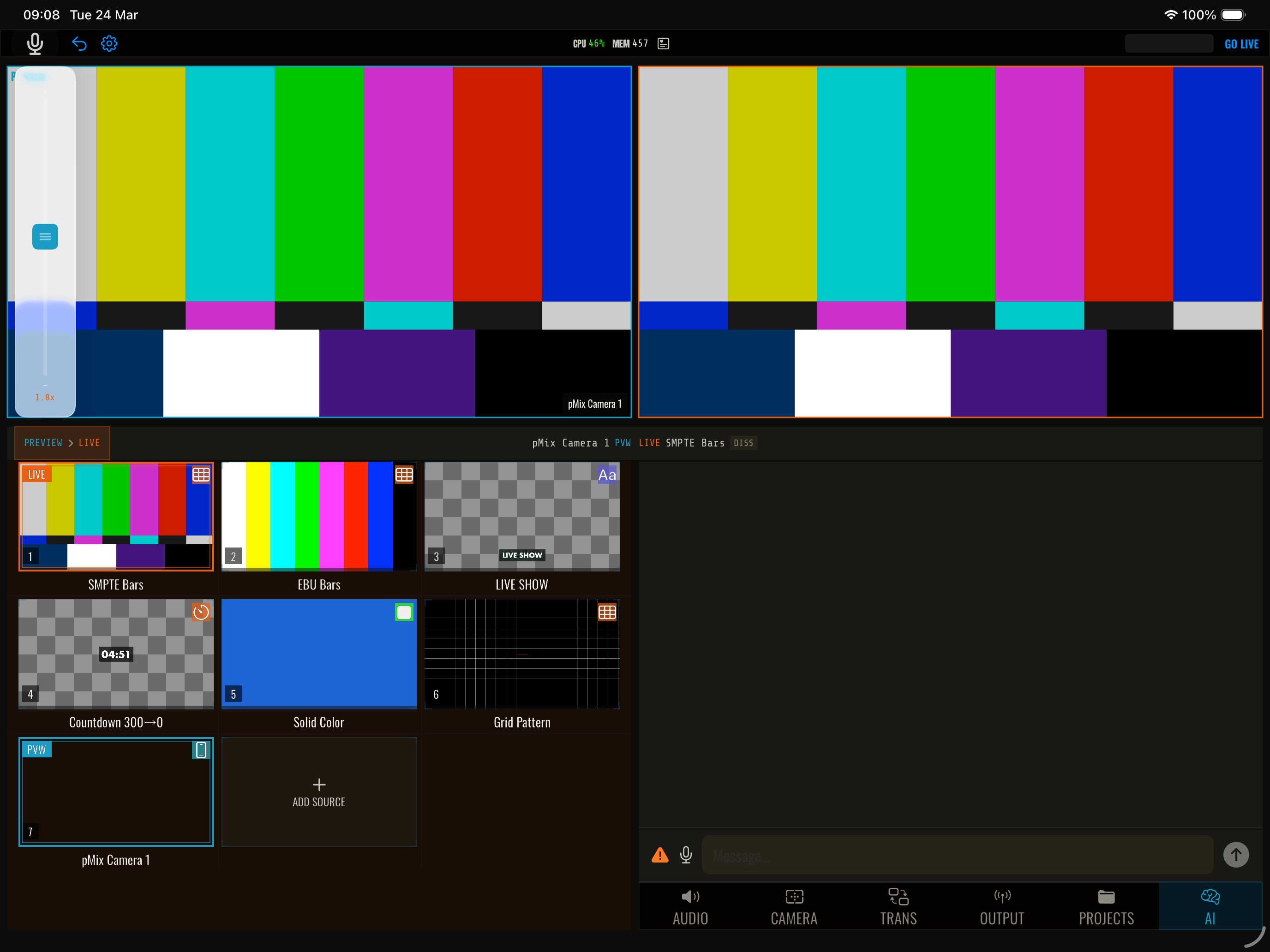
pMix.studio’s AI voice assistant lets you control your production hands-free using natural language commands. Speak to switch cameras, trigger transitions, adjust audio, toggle overlays, and more — without touching the iPad.
How it works
pMix.studio uses on-device speech recognition combined with AI natural language understanding to interpret your commands. You speak naturally, and the system translates your intent into actions.
For example:
- “Switch to camera two” → sets slot 2 as program
- “Dissolve to the wide shot” → triggers a cross dissolve transition
- “Mute slot three” → mutes audio for slot 3
- “Show the lower third” → toggles an overlay
Enabling voice control
- Open Settings
- Enable AI Voice Control
- Grant microphone permission if prompted
The mic is the switch
There is one microphone control: the TALK button in the action column on iPad, or the toolbar mic on iPhone. Tap it to start listening, tap it again to stop.
While the assistant is listening, a pulsing teal AI dot sits in the toolbar next to LIVE and REC, so it’s always obvious the mic is open.
Turning the mic off is a full stop, not just a mute. Voice and text commands stop reaching the switcher, anything mid-generation is cancelled, and nothing pending gets applied afterwards. If the assistant does something you didn’t want, the mic button is the way to stop it.
Spoken replies
In voice mode the assistant speaks its answers back. The speaker button in the chat panel’s input bar turns that off if you’d rather read them.
It won’t talk over itself or hear itself: the assistant stops listening while it’s speaking, and ignores its own voice coming back through the room.
Changing your mind mid-answer
Send another message while the assistant is still working and it drops what it was doing and answers the new one. You don’t have to wait out an answer you no longer want.
What you can control
- Video switching — Switch cameras, set preview, cut, auto-transition
- Audio — Adjust volume, mute/unmute, toggle monitoring
- Overlays — Show/hide overlays
- Transitions — Change transition type and trigger transitions
- Scenes — Recall scenes
- Output — Start/stop streaming and recording
Tips
- Speak clearly — Clear pronunciation improves recognition accuracy
- Use slot numbers — “Camera one”, “slot two”, “source three” all work
- Keep it simple — Short, direct commands work best
- Background noise — Voice control works best in quieter environments; consider using a headset mic in noisy venues
- The mic button is your stop button — if a command is going somewhere you don’t want, tap the mic off