Camera Control Overview
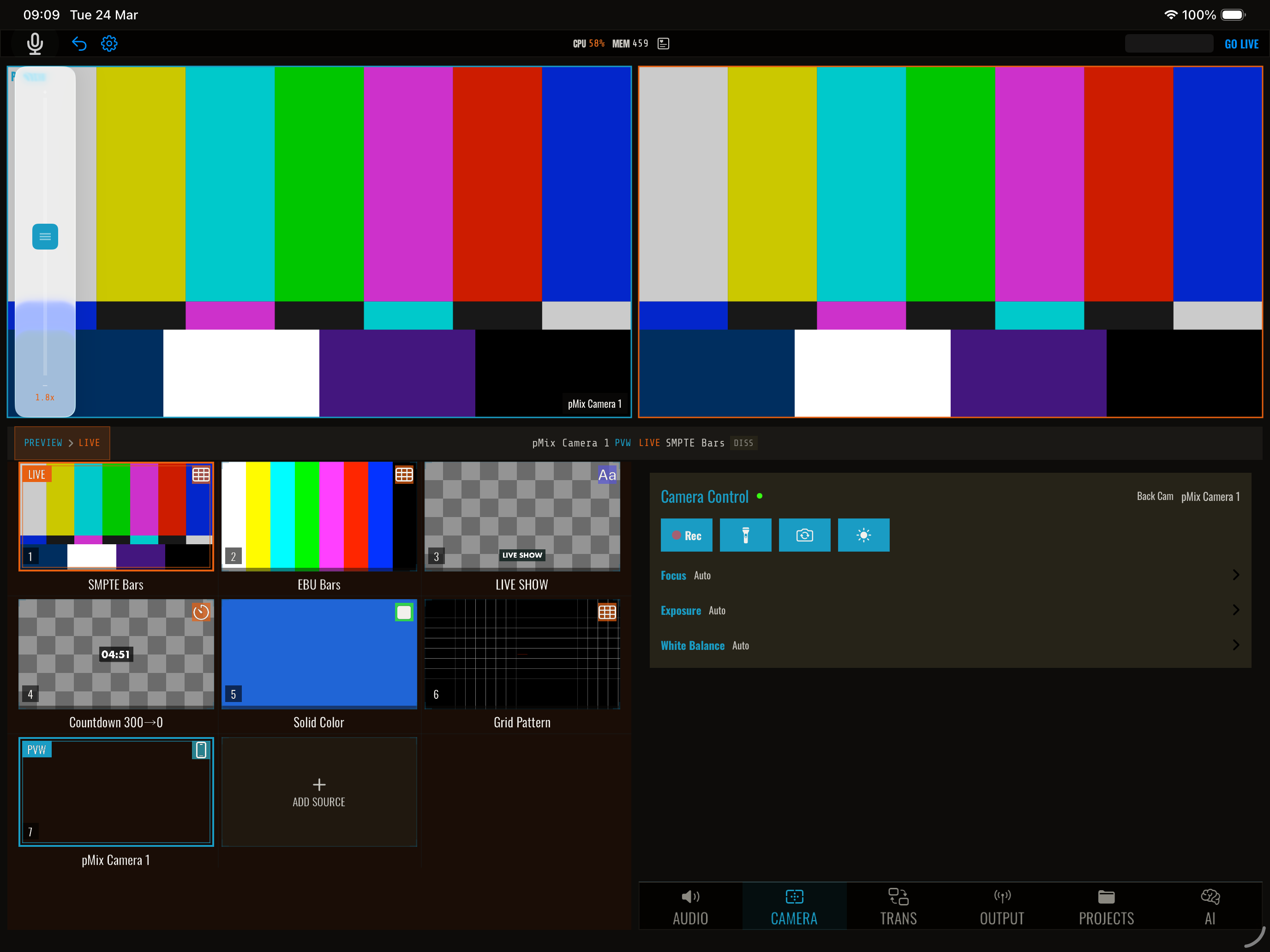
pMix.studio lets you remotely control cameras directly from the mixer — adjusting zoom, focus, exposure, and more without touching the camera device.
Supported camera types
| Camera Type | Description | Controls Available |
|---|---|---|
| pMix Camera | iPhone or iPad running the pMix Camera app | Zoom, focus (tap/manual/auto), exposure, white balance, torch, camera switch, ultra-wide, recording, subject tracking |
| NDI PTZ | NDI-compatible cameras with PTZ support | Pan, tilt, zoom, presets, image controls (via NDI PTZ or VISCA over IP) |
How it works
Camera controls appear automatically when you select a source that supports remote control:
- Select a pMix Camera source to see camera-specific controls (zoom, focus, exposure, white balance, torch, recording)
- Select an NDI source with PTZ capability to see pan/tilt/zoom controls and presets
Controls operate on the preview source — select the camera in preview to control it, review the shot, then transition it to program when ready.
pMix Camera
Any iPhone or iPad running the pMix Camera app can be controlled remotely. The mixer discovers pMix Cameras automatically on the local network and shows controls for:
- Zoom — Smooth normalized zoom across the full lens range
- Focus — Tap-to-focus, manual lens position, or continuous auto-focus
- Exposure — Compensation (EV stops) or continuous auto-exposure
- White balance — Manual temperature/tint or continuous auto
- Torch — Toggle the device flashlight
- Camera switch — Toggle front/back camera
- Ultra-wide — Switch to ultra-wide lens (if available)
- Lens — Pin capture to a physical back lens (ultra-wide / wide / telephoto) instead of the virtual multi-lens device
- Microphone — Choose which of the phone’s inputs it captures through
- Screen dim — Dim or blank the phone’s own display to save battery on a long unattended shot
- Recording — Start/stop local recording on the camera device
- Track — Person tracking, with tap-to-track to pick the subject
See pMix Camera Remote Control for details.
NDI PTZ
For NDI cameras that support PTZ, the control panel shows pan/tilt/zoom with joystick-style controls and numbered presets.
See NDI PTZ Control for details.
PTZ presets
Save and recall camera positions:
- Store a preset to save the current zoom/position
- Recall a preset to snap back to a saved position
- Presets are numbered and can be triggered via the UI, gamepad, or OSC
Phone cameras on a DockKit gimbal get presets too — a saved preset recalls the head’s position as well as the zoom.
See PTZ Presets for details.
Control methods
| Method | Description |
|---|---|
| Touch UI | On-screen controls in the camera panel |
| Gamepad | Physical joystick control for pan/tilt/zoom |
| OSC | Remote control from TouchOSC, Companion, or other OSC apps |
OSC control
All camera and PTZ commands are available via OSC — see OSC Remote Control for the full command reference.