Streaming & Recording Overview
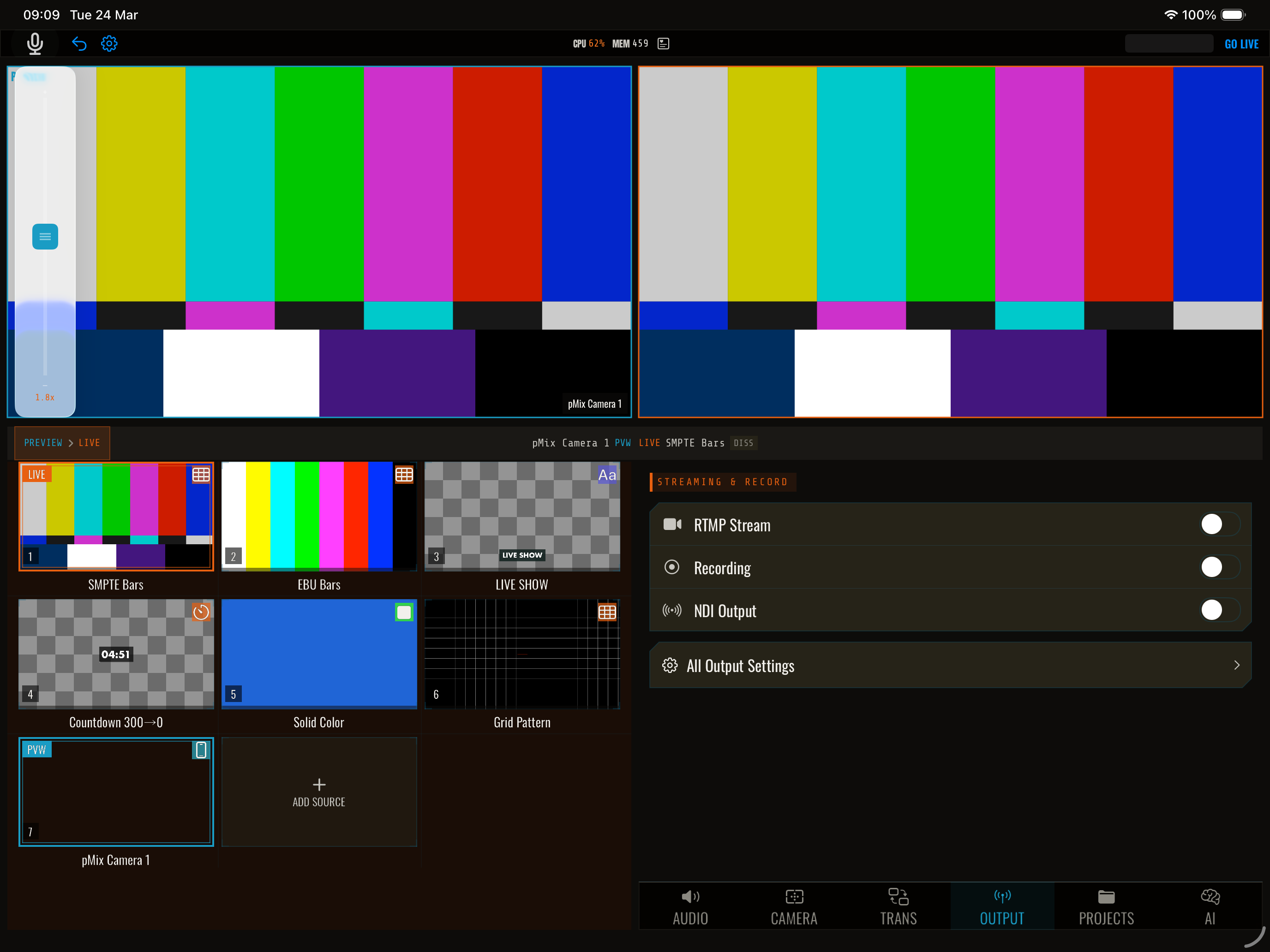
pMix.studio can send your program output to multiple destinations simultaneously — live streaming platforms, network outputs, and local recording.
Output types
RTMP streaming
Stream to any RTMP-compatible platform:
- YouTube Live
- Twitch
- Kick
- Facebook Live
- TikTok Live
- X (Twitter)
- Restream.io
- Any custom RTMP server
Every platform is a one-tap tile in Your Destinations — the ingest URL and recommended settings are filled in for you, so all you add is your stream key.
NDI output
Send your program as an NDI source on the local network. Other NDI-compatible software and hardware can receive it — useful for feeding a recording PC, a second mixer, or a confidence monitor.
SRT output
Output via Secure Reliable Transport for reliable delivery over unpredictable networks. SRT is used by many broadcast facilities and cloud ingest services. pMix.studio supports three SRT connection modes:
- Caller — Connect to an SRT server (most common)
- Listener — Accept incoming SRT connections on a port
- Rendezvous — Simultaneous connect from both sides (no dedicated listener needed)
SRT output also supports AES encryption via passphrase and stream ID for multiplexing on shared servers.
HLS output
Output as an HTTP Live Streaming (HLS) feed. Currently used for YouTube HLS ingestion with configurable segment duration (1–4 seconds).
Local recording
Record your program output directly to the iPad’s storage. Recording works independently of streaming — you can record without streaming, stream without recording, or do both simultaneously.
Your Destinations
Streaming destinations live in one list. Open the output settings and tap Live Streaming:
- Add — tap a platform tile under Add Destination. The ingest URL is filled in, along with encoder settings that suit that platform; paste your stream key and you’re set. Twitch and YouTube also offer Sign in, which fetches your stream key automatically each time you go live — no key to copy or store.
- Edit — tap a saved destination to rename it, pick an ingest server, or update the key. Each platform’s editor links straight to the dashboard page where your key lives. You can reveal a saved key when you need to check it.
- Switch account — a signed-in destination offers Switch Account as well as Disconnect, so you can move a stream to a different channel without deleting and rebuilding the destination. If you disconnect an account from a destination that also had a manual key, the manual key comes back.
- Enable — keep several destinations saved and enable the one you’re going live to. Going live streams to the first enabled destination; streaming to several platforms at once is coming soon.
- Remove — swipe left on a destination.
Where your stream keys are kept
Stream keys, the SRT passphrase and the HLS key are stored in the iPad’s Keychain, not in project files. A project you share or back up doesn’t carry your credentials with it.
Each project keeps its own SRT passphrase and HLS key, so two projects streaming to different servers don’t share whichever one was set last.
Starting and stopping
- Add a destination under Live Streaming in the output settings
- Tap GO LIVE to begin streaming, or REC to record — they’re separate controls
- The status bar shows live indicators for streaming and recording
- Tap Stop to end all outputs
Record while live is on by default: going live also starts a local backup recording automatically. Turn it off in the Live Streaming settings if you don’t want that.
You can also control outputs individually via the settings panel or OSC commands.
Monitoring while multitasking
Leave the app while live and your PROGRAM output keeps playing in a floating picture-in-picture window — watch the show while you check chat, notes, or another app. The mix keeps rendering in the background, so the PiP window shows the true live output and remote switching keeps working. You can turn PROGRAM PiP off in settings.
Video settings
| Setting | Description | Typical values |
|---|---|---|
| Resolution | Output resolution | 1920x1080, 1280x720, 3840x2160 (4K) |
| Frame rate | Frames per second | 25, 30, 50, 60 |
| Video codec | H.264 or H.265 (HEVC) | H.264 for broadest compatibility |
| Bitrate | Video bitrate in kbps | 2500–15000 depending on resolution and platform |
| Audio bitrate | Audio bitrate | 128 kbps (default) |
Suggested bitrates
| Video mode | Suggested bitrate |
|---|---|
| 720p 30fps | 2.5 Mbps |
| 720p 60fps | 4 Mbps |
| 1080p 30fps | 4.5 Mbps |
| 1080p 60fps | 6 Mbps |
| 4K 30fps | 15 Mbps |
H.265 (HEVC)
H.265 provides roughly 40% better compression at the same quality. When using H.265 with RTMP, you must use RTMPS (TLS-encrypted RTMP) — plain RTMP does not support HEVC. H.265 works natively with SRT and HLS outputs.
RTMP auto-reconnect
RTMP streaming supports automatic reconnection if the connection drops. By default, pMix.studio will retry up to 10 times with a 10-second delay between attempts.
Platform-specific guides
Each streaming platform has its own requirements for stream keys, bitrates, and codecs. See the individual platform guides: