NDI PTZ Control
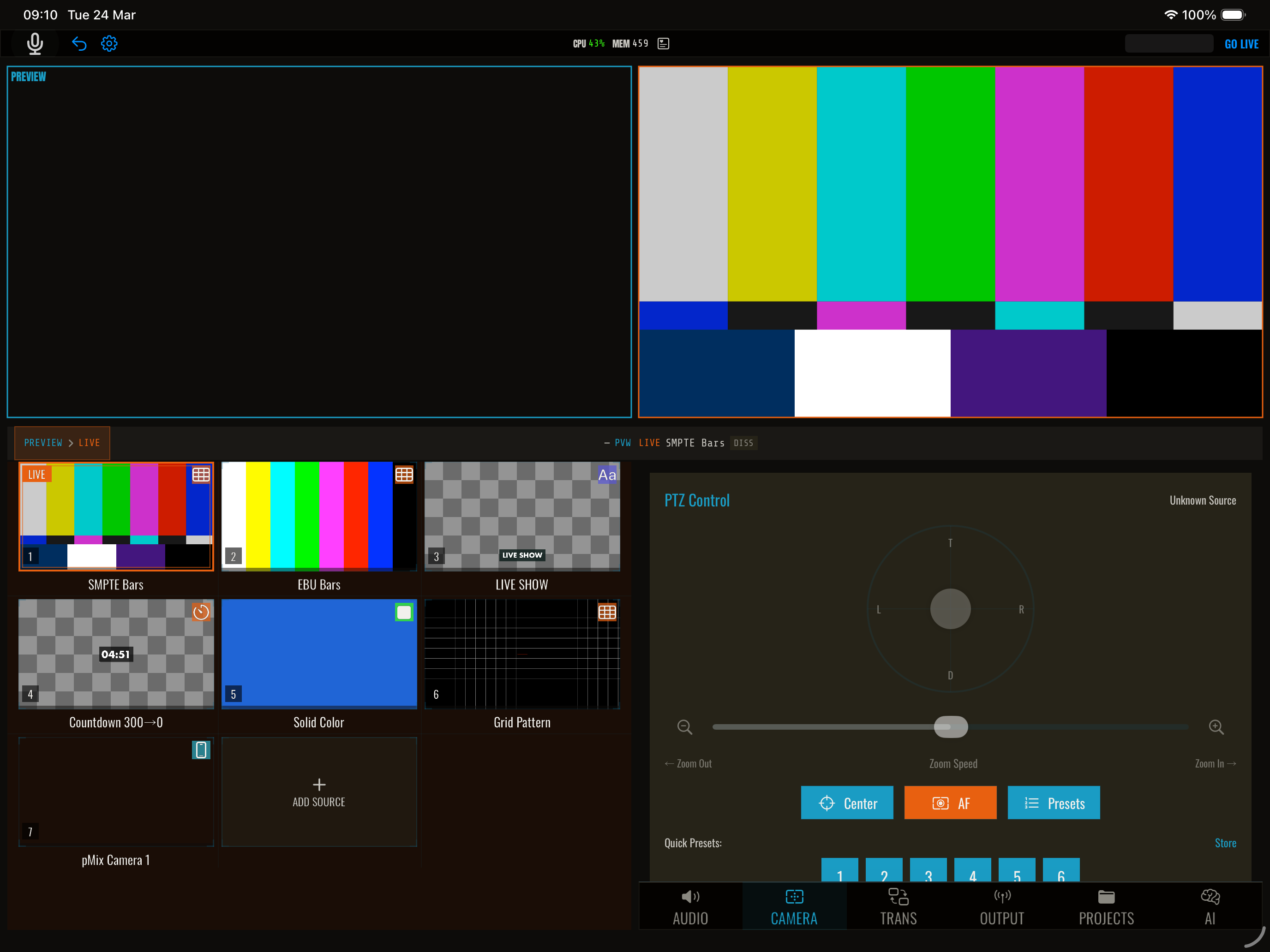
NDI cameras that support PTZ (pan-tilt-zoom) can be controlled directly from pMix.studio via the NDI PTZ protocol. No additional software or hardware controllers are needed.
Supported cameras
Any NDI camera that advertises PTZ capability works, including:
- PTZ Optics NDI cameras
- BirdDog PTZ cameras
- Panasonic NDI-enabled PTZ cameras
- Any NDI source with PTZ support
Using PTZ controls
- Add an NDI source to a slot
- Select the source (it should be in preview)
- PTZ controls appear if the source supports PTZ
pMix.studio asks each NDI source whether it can be remote-controlled and only shows PTZ controls for sources that advertise support. A static camera won’t get fake controls, and a PTZ camera will light them up automatically — no per-source configuration needed.
NDI PTZ or VISCA over IP
Open Edit Properties on an NDI source to choose how pMix drives it:
- NDI PTZ — commands ride the NDI stream itself. Nothing to configure.
- VISCA over IP — commands go direct to the camera’s own control port. Enter the camera’s address and port, and use Test Connection to confirm it answers. Many heads respond faster and more precisely to VISCA than to NDI metadata.
The properties sheet shows which path is actually live: VISCA connected, or No VISCA response — using NDI PTZ.
That second state matters. If VISCA doesn’t answer, pMix keeps driving the camera over NDI PTZ — which a VISCA-only head may ignore entirely, so the camera simply doesn’t move. The Camera tab header shows NO VISCA next to the camera while that’s happening, so you find out on the panel you’re driving from rather than by going looking. A healthy rig looks exactly as it always did.
Pan and tilt direction
If a camera pans or tilts the opposite way to your stick, invert it per source in the properties sheet rather than retraining your hand. The setting is saved with the source.
Image controls
NDI and VISCA cameras get IRIS, GAIN, SHUTTER, RED and BLUE controls alongside pan/tilt/zoom.
pMix asks the camera what it actually supports, and shows each control in one of three states:
| State | What it means |
|---|---|
| Reading back | The camera answered. The value shown is the camera’s own, in the camera’s own units — an iris step, a mode name. |
| Sent, not confirmed | Dimmed and marked. pMix sent the value; this camera can’t be read back, so nothing confirms it landed. |
| Hidden | The camera said it has no such control. |
Most cameras fall into the middle state — that’s normal, and it’s honest rather than a fault. Nothing is hidden on a guess: a camera pMix can’t read keeps all five controls. Losing a camera mid-show never takes away a control you were using; only the freshness of the number degrades.
BirdDog cameras answer over their REST port and read back properly.
Pan and tilt
Use the on-screen joystick or directional controls to pan (left/right) and tilt (up/down) the camera. Speed values range from -1 to 1.
Zoom
Use the zoom slider or buttons to zoom in and out. You can set:
- Zoom speed (-1 to 1) for continuous zooming
- Zoom level (0 to 1) for absolute zoom position
Stop
Tap the stop button to halt all PTZ movement.
Center
Tap center to return pan and tilt to the home position (0, 0).
OSC control
| Address | Args | Description |
|---|---|---|
/streamit/ptz/pantilt |
float, float | Pan speed, tilt speed (-1 to 1) |
/streamit/ptz/zoom |
float | Zoom speed (-1 to 1) |
/streamit/ptz/level |
float | Absolute zoom level (0–1) |
/streamit/ptz/stop |
— | Stop all movement |
/streamit/ptz/center |
— | Center pan and tilt |
/streamit/ptz/autofocus |
— | Trigger auto-focus |
PTZ commands operate on the preview source.
Tips
- Preview first — Frame your shot in preview before transitioning to program
- Slow movements — Use low speed values (0.1–0.3) for smooth, professional-looking camera moves
- Save presets — Store frequently-used positions as presets for instant recall